
Automated File Conversion Server
Turn ViewCompanion Premium into an Automated Conversion Server
Stop wasting time on manual file conversions. With ViewCompanion Premium and its powerful Watch Folder Conversion feature, you can create a fully automated file conversion workflow that runs continuously—just like a dedicated server.
What Is Watch Folder Conversion?
Watch Folder Conversion allows ViewCompanion Premium to monitor a selected folder and automatically convert any new files that appear.
How it works:
- A file is added to a monitored folder
- ViewCompanion detects it instantly
- The file is converted to your chosen format
- The result is saved to a predefined output folder
No clicks. No manual steps. Just automation.
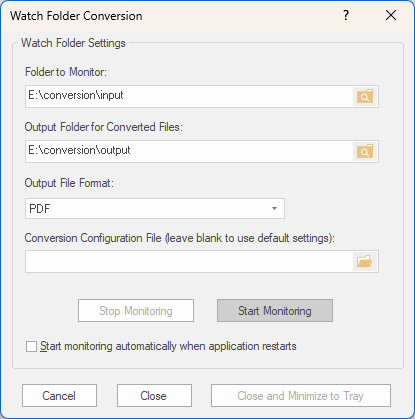
Watch Folder Setup Dialog
The Watch Folder Conversion Setup dialog is used to define which folder ViewCompanion should monitor, where converted files should be saved, and how each file should be processed.
- Folder to monitor: Select the folder that ViewCompanion should continuously check for new files.
- Output folder: Select the folder where the converted files should be saved.
- Output file format: Choose the file format to be created, such as PDF, TIFF, PNG, JPEG, DXF, or another supported format.
- Conversion configuration: Select an optional conversion configuration file containing predefined settings for scaling, resolution, page size, colors, compression, DWG handling, PDF/A output, and other conversion options. The selected settings are applied automatically to every file processed by the Folder Monitor. See the conversion configuration file reference for a complete list of available settings and accepted values.
- Start automatically: Enable this option if Watch Folder Conversion should start automatically when ViewCompanion is launched.
When the setup is complete, click Start Monitoring to begin watching the selected folder.
Why Use It as a Conversion Server?
Instead of relying on expensive or complex server solutions, ViewCompanion Premium offers a simple and cost-effective alternative.
Key Advantages
✔ Fully Automated Processing
Files are converted instantly as they arrive.
✔ High-Volume Ready
Handle large batches of files without user interaction.
✔ Consistent Output Quality
Use predefined settings for reliable, repeatable results.
✔ Easy Integration
Works seamlessly with other systems—just drop files into the monitored folder.
Perfect for These Workflows
ViewCompanion Premium fits naturally into many business processes:
- CAD to PDF automation
- TIFF to searchable PDF (OCR) pipelines
- Document archiving systems
- Print preparation workflows
- ERP and DMS integrations
👉 Discover more features: https://www.softwarecompanions.com/viewpremium.html
Simple Setup, Powerful Results
Getting started is quick and easy:
- Select the folder to monitor
- Choose your output format (PDF, TIFF, PNG, etc.)
- Define the output location
- Select an optional conversion configuration file to control settings such as scale, resolution, page size, colors, and output format options.
- Start Watch Folder Conversion
From that point on, everything runs automatically.
Control Conversions with a Configuration File
A conversion configuration file can be used to control how each file detected by the monitored folder is converted. This makes it possible to apply the same predefined settings automatically to every file, ensuring consistent and repeatable output.
The configuration file can define settings such as:
- Output resolution and color depth
- Page size, orientation, margins, and scaling
- Monochrome or color output
- PDF, TIFF, PNG, JPEG, DWG, and DXF conversion options
- PDF/A conformance level
- DWG layout, unit, font, and rendering settings
- Pen tables, background colors, and line-width handling
- Logging and output-file options
Once a configuration file has been selected for the monitored folder, ViewCompanion applies its settings whenever a new file is detected and converted. Only the settings that need to be controlled or overridden have to be included in the file.
See the ViewCompanion conversion configuration file reference for a complete list of available settings and an example configuration file.
Run Watch Folder Conversion Automatically with Windows Task Scheduler
To make your automated workflow even more robust, you can configure ViewCompanion Premium to start automatically using the Windows Task Scheduler. This ensures that your Folder Monitor is always active—even after system reboots.
Why Use Task Scheduler?
- Automatically start ViewCompanion at system startup
- Ensure uninterrupted file conversion workflows
- Run on a dedicated machine or virtual server
- Eliminate manual startup
Basic Setup Steps
- Open Windows Task Scheduler
- Click Create Basic Task
- Name it (e.g., ViewCompanion Folder Monitor)
- Choose trigger:
- At system startup (recommended)
- Or At log on
- Select Start a program
- Browse to the ViewCompanion executable
- (Optional) Add command line arguments to load predefined settings
- Save and activate the task
Pro Tip
- Ensure network folders are always accessible
- Verify write permissions for output folders
- Save your conversion settings in advance
This setup creates a fully unattended file conversion system.
A Smart Alternative to Complex Server Solutions
ViewCompanion Premium delivers the benefits of a conversion server—without the complexity:
- No advanced infrastructure required
- No custom development needed
- No expensive server licenses
Just install, configure, and automate.
Automated File Conversion Made Easy
Whether you need to convert CAD drawings, PDFs, TIFF images, or other file formats, ViewCompanion Premium provides a powerful automation engine.
The Folder Monitor feature ensures every file is processed quickly, accurately, and without manual intervention—helping your business:
- Save time
- Reduce errors
- Scale document workflows efficiently
Start Automating Your Workflow Today
If you regularly convert files, Watch Folder Conversion can save hours of manual work and eliminate repetitive tasks.
👉 Visit the ViewCompanion Premium page to learn more and get started with ViewCompanion Premium.
or
👉 download a ViewCompanion Premium trial version now.
Frequently Asked Questions
Can ViewCompanion Premium run as an automated file conversion server?
Yes, ViewCompanion Premium can function as an automated file conversion server using its Watch Folder feature, which automatically processes files added to a monitored folder.
What file formats can ViewCompanion convert?
ViewCompanion supports a wide range of formats including PDF, DWG, TIFF, CALS, CAD formats, and various image formats.
Can I automate ViewCompanion using Windows Task Scheduler?
Yes, you can configure Windows Task Scheduler to start ViewCompanion automatically at system startup, enabling a fully unattended conversion workflow.
Related information
- Conversion configuration file reference
- Example configuration files on GitHub
- Supported input and output formats