
How to Remove Foxing from Scanned Documents
How to use ViewCompanion Premium to remove yellow stain caused by aging
ViewCompanion Premium can be used to clean up scanned documents using a variety of tools.
Older documents may appear yellowish due to aging, an effect that are commonly known as
foxing.
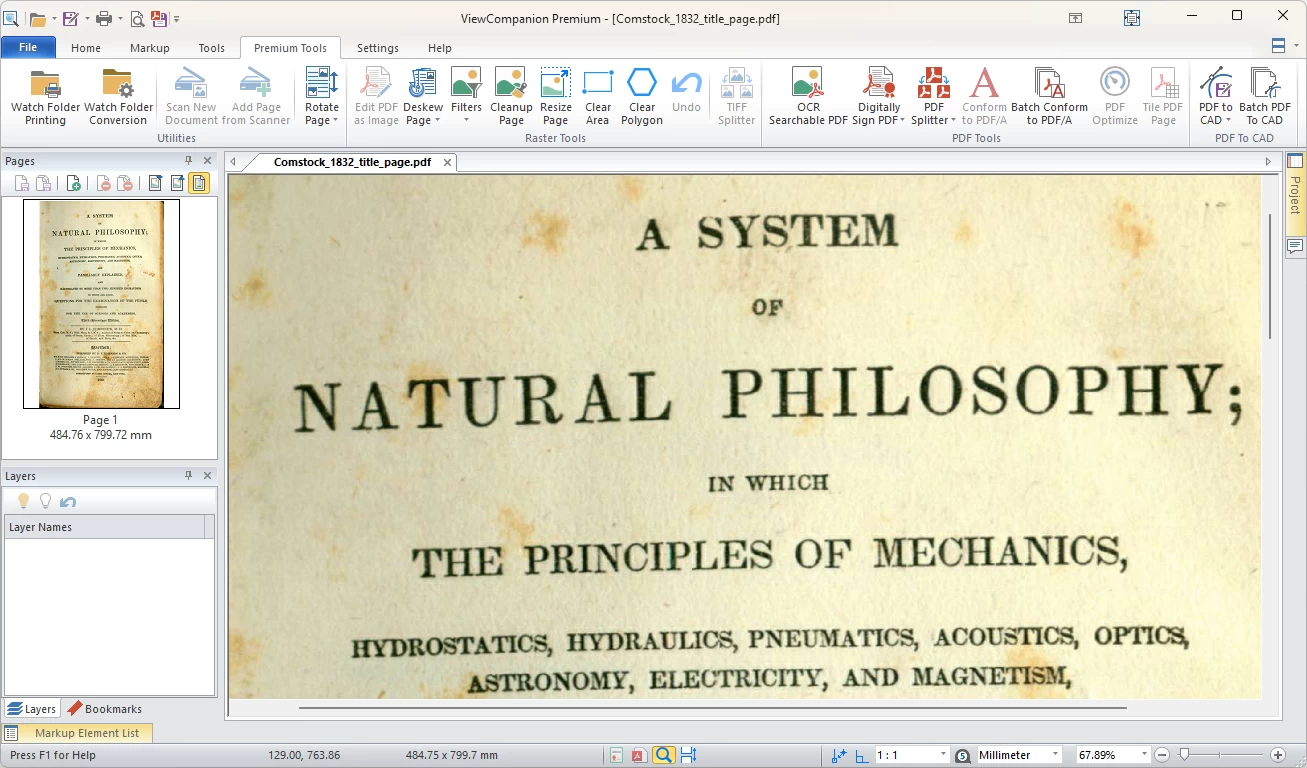
The image below shows a typical document with foxing opened in ViewCompanion:
To remove the foxing with Premium, you can run the defoxing filter.
Please note that if your file is a PDF you have to press the Edit PDF as Image button first.
You will find the defoxing filter by pressing the Filters button found on the Premium Tools tab.
The defoxing filter is the first available option.
Select the defoxing filter and the following dialog will appear:
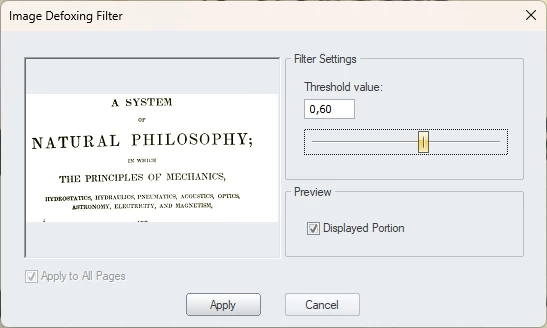
In the dialog you will find a threshold value that you can change to adjust the effect of the filter.
Use the slider to change the value or enter a new value in the edit field.
The preview will show you how the selected threshold value will affect the image.
When you're satisfied with the result, just press the Apply button.
If you want a black and white result you can use the Binarization filter instead.
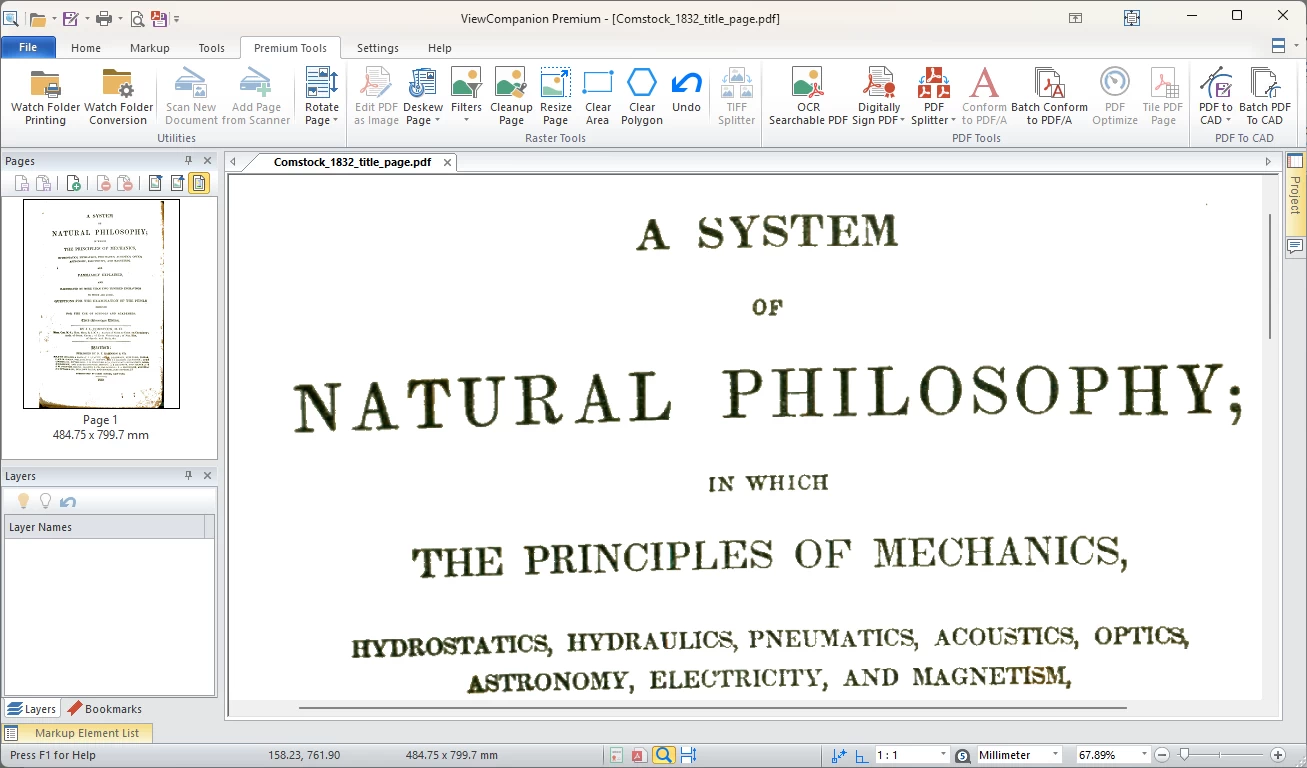
The picture below shows the same document after running the foxing removal filter:
Further Processing
After applying the defoxing filter, some stains may still remain.
You can remove any remaining spots using other tools, such as the Clear Area or the Clear Polygon tools.
If the image is skewed you can straighten it by running the Deskew tool.
You’ll find all these tools on the Premium tab.
Saving Changes
When you are satisfied with the result, you can save it as a new PDF file using the Save as PDF command on the Home tab.
You can also save the file in other formats—such as TIFF, JPEG, or PNG—using the Save As command on the Home tab.
If you are using ViewCompanion Premium 64-bit, you can also run OCR to create a
searchable PDF file that includes all your changes.
ViewCompanion Premium
ViewCompanion Premium is a powerful software solution for viewing, converting, and processing PDF, CAD, and image files. It includes advanced features such as PDF conversion, batch processing, OCR (optical character recognition), file comparison, watermarking, and document cleanup. Designed for both professionals and businesses, ViewCompanion helps streamline document workflows by enabling fast file conversion, automated processing, and accurate viewing of multiple file formats.
Whether you need to convert files to PDF, compare drawings, clean up scanned documents, or automate repetitive tasks, ViewCompanion provides the tools you need in one easy-to-use application.
Click the link below to learn more about ViewCompanion Premium and explore its full feature set:
Learn more about ViewCompanion Premium
Try ViewCompanion free for 30 days: