
Combine or Merge PDF Files with ViewCompanion
Combine or merge multiple PDF files into a single PDF
ViewCompanion makes it easy to combine multiple PDF files into a single PDF document. You can select several files, arrange them in the correct order, add bookmarks for easier navigation, and create one organized PDF file for sharing, archiving or printing.
One of the key benefits is improved organization. Instead of juggling multiple files, you'll have one cohesive document, streamlining your workflow and saving precious time.
Furthermore, merging PDFs preserves the integrity of your documents, ensuring that the original formatting, fonts, and images remain intact.
This is crucial for maintaining the professional appearance of reports, presentations, or contracts.
It's a useful tool for both personal and professional tasks.
Why Combine PDF Files?
Combining several PDF files into one document makes it easier to distribute, archive and manage related information. Instead of sending many separate files, you can create one complete PDF package with all pages in the correct order.
This is useful for reports, manuals, engineering drawing sets, project documentation, contracts, scanned documents, customer deliveries and technical archives.
Typical PDF Merge Use Cases
Project Documentation
Combine several reports, drawings and supporting documents into one project PDF.
Drawing Sets
Merge multiple drawing sheets into a single PDF file for review, printing or distribution.
Document Archives
Combine related PDF files into one archive file for easier storage and retrieval.
How to Merge PDF Files in ViewCompanion
The PDF merge function is designed to be simple to use. You select the files you want to combine, arrange them in the desired order and then create the final PDF document.
To merge PDF files in ViewCompanion, use the PDF Merge tool located under the Tools tab.
Click the button with the icon shown below to open the PDF Merge dialog:

You will then see the following dialog:
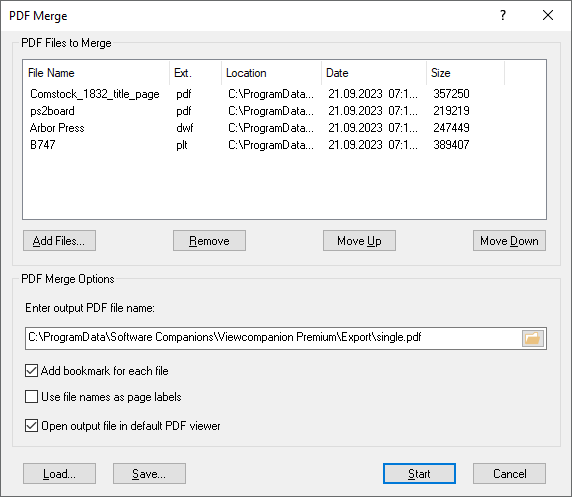
Add the files you want to combine into a single PDF. The files will be merged in the order they appear in the list, and you can adjust this order at any time using the move up and down buttons.
In addition to PDF files, ViewCompanion can also include several other supported file formats in the same merge operation, as shown above.
These files are automatically converted to PDF and added to the final document.
Reorder Files Before Creating the PDF
Files are inserted into the final PDF in the order shown in the merge list. Before creating the output document, you can move files up or down to make sure that title pages, reports, drawings, attachments and supporting documents appear in the correct order.
This is especially useful when creating project documentation, drawing packages or customer delivery files where document order is important.
Add Bookmarks to the Merged PDF
A large merged PDF can be difficult to navigate if it contains many files or drawing sheets. ViewCompanion can add bookmarks to the output PDF, making it easier to jump directly to each inserted document or section.
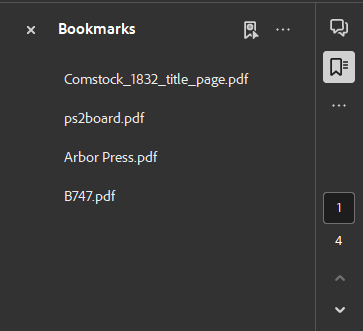
Enable the Add bookmark for each file option, and the first page of each imported file will automatically be added as a bookmark.
This makes it easier to navigate large merged documents, as shown below in Adobe Acrobat.
Frequently Asked Questions
Can ViewCompanion merge multiple PDF files into one PDF?
Yes. ViewCompanion can combine several PDF files into a single PDF document.
Can I change the order of the files before merging?
Yes. Files are merged in the order shown in the PDF Merge dialog, and you can move files up or down before creating the final PDF.
Can bookmarks be added automatically?
Yes. ViewCompanion can add bookmarks to the merged PDF, making the final document easier to navigate.
Can I merge other file formats into the same PDF?
Yes. Depending on the ViewCompanion edition, supported formats such as DWF, TIFF, PLT and other files can be converted to PDF and included in the merged output.
Which ViewCompanion editions support PDF merging?
The PDF merge feature is available in ViewCompanion Pro and ViewCompanion Premium.
Can I create one PDF from PDF, DWF and TIFF files?
Yes. ViewCompanion can convert supported input formats to PDF and include them in the same merged output file.
Can I add PDF merge functionality to my own application?
Yes. Developers can use the scConverter SDK to add PDF merge, split and conversion functionality to their own applications or server workflows.
Merging PDF files with ViewCompanion
The PDF merge feature is available in ViewCompanion Pro and ViewCompanion Premium.
The Premium edition supports a wider range of input formats.
For a complete overview of supported formats in each edition, please see the
ViewCompanion File Format comparison chart.
Use the links below for detailed information about each edition:
Read more about ViewCompanion Pro
Read more about ViewCompanion Premium
Click here to download a 30-days trial now
PDF Merge for Developers
If you need to add PDF merge or document conversion functionality to your own application, Software Companions also offers developer tools. The scConverter SDK can be used to add PDF processing, conversion and automation features to custom desktop, server or workflow applications.
This can be useful for document management systems, automated reporting, batch conversion, engineering workflows and server-side document processing.
A description of all features can be found by clicking the link below:
Read more about scConverter Conversion SDK


